
Thanks for buying NotchBeat
Let's get it into your notch.
It takes about a minute. Download the app, then follow the steps below.
Download NotchBeat for MacFree updates · Needs macOS 13 or later
Before you start, a quick note from me
When you open NotchBeat, your Mac will warn you that Apple couldn't verify it. I'm sorry for the scare. Here's the honest reason.
To make that warning disappear, Apple asks developers to pay $99 every year for a developer account. I'm one person building NotchBeat on my own, and right now I simply can't afford it. That's also why NotchBeat costs just $6.99. I wanted it to be something anyone could pick up.
The warning doesn't mean something is wrong with the app. It only means it isn't signed with a paid Apple account. The steps below take less than a minute, and you only do them once.
Every copy you buy brings me closer to that $99, and to the day this warning goes away for everyone. Thank you for believing in a tiny indie app. It truly means the world to me.
Rishit
- 1
Move it to Applications
Open your Downloads folder and double-click the NotchBeat zip. Drag the NotchBeat app that appears into your Applications folder, then double-click it to open.
- 2
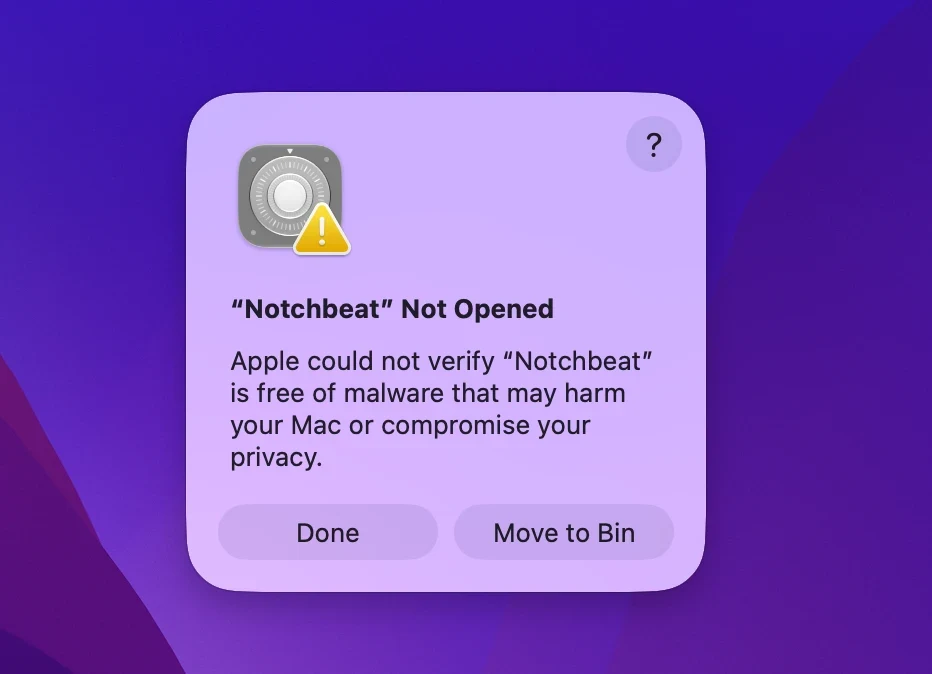
macOS shows a warning. Click Done.
You'll see “Notchbeat” Not Opened. This is expected (read why above). Click Done. Don't click Move to Bin.
- 3
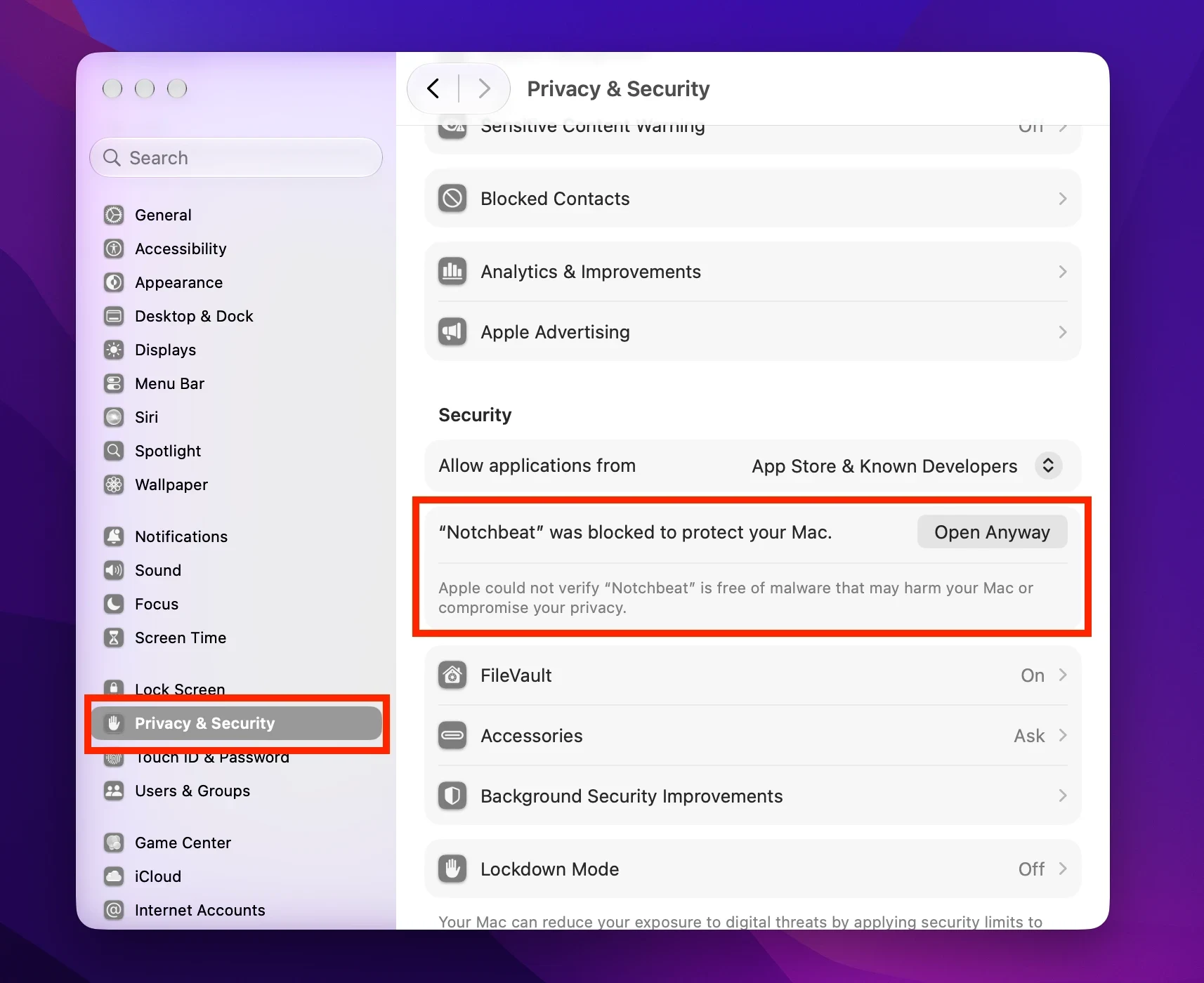
Open Privacy & Security and click Open Anyway
Open System Settings, pick Privacy & Security in the sidebar and scroll down to Security. Next to “Notchbeat was blocked to protect your Mac”, click Open Anyway.
- 4
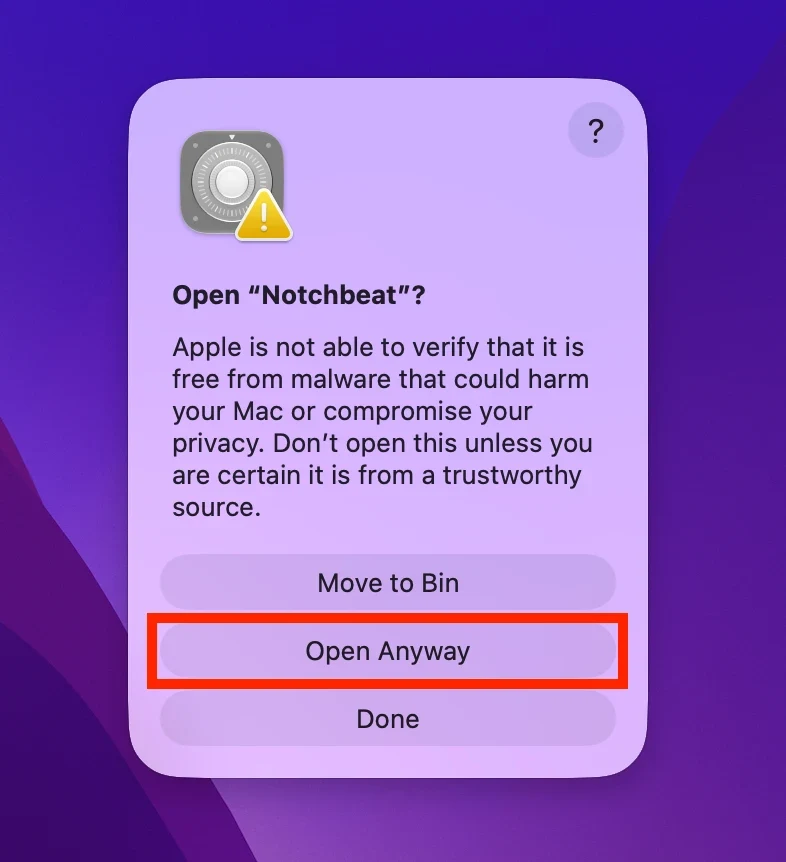
Confirm with Open Anyway
macOS asks one last time. Click Open Anyway, and enter your Mac password or use Touch ID if asked. You only do this once. After that, NotchBeat opens normally and updates itself.
- 5
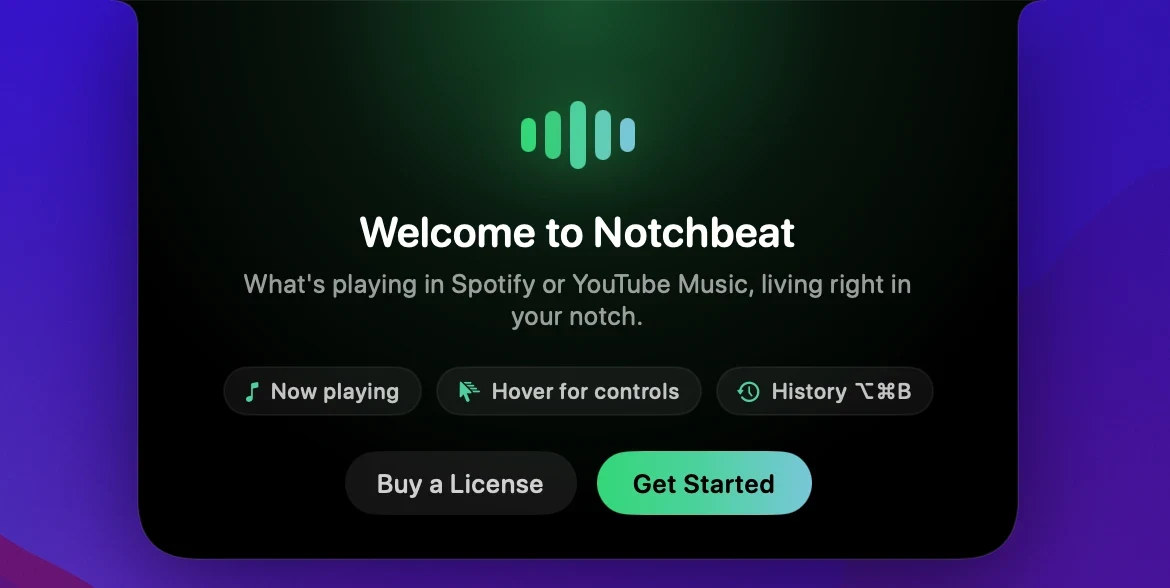
Click Get Started
NotchBeat drops down from your notch and says hello. Click Get Started.
- 6
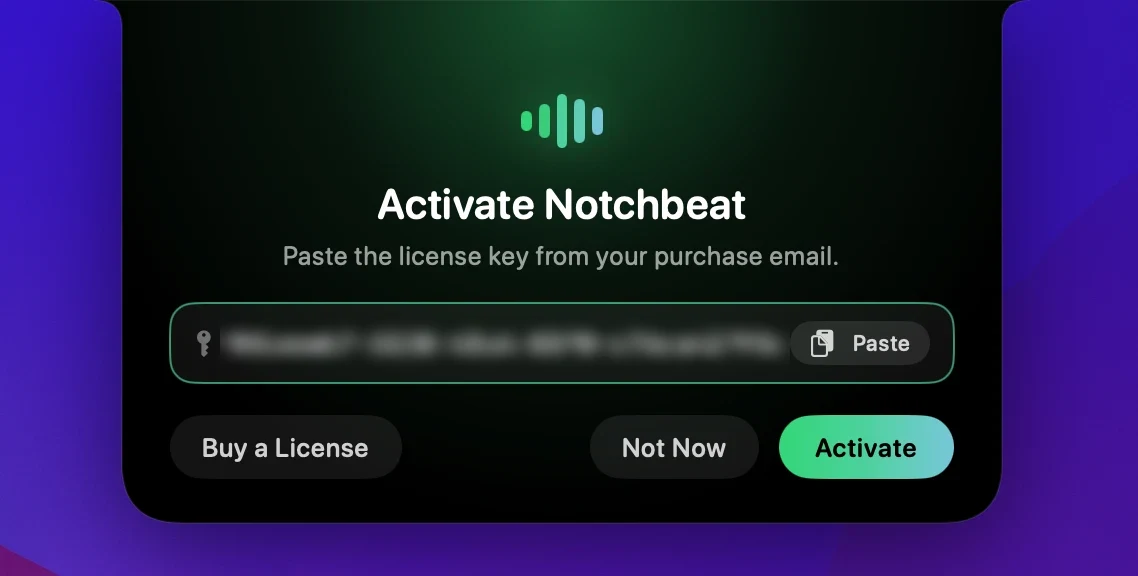
Paste your licence key and click Activate
Copy your licence key from this page or from your Dodo Payments email. Click Paste, then Activate.
- 7
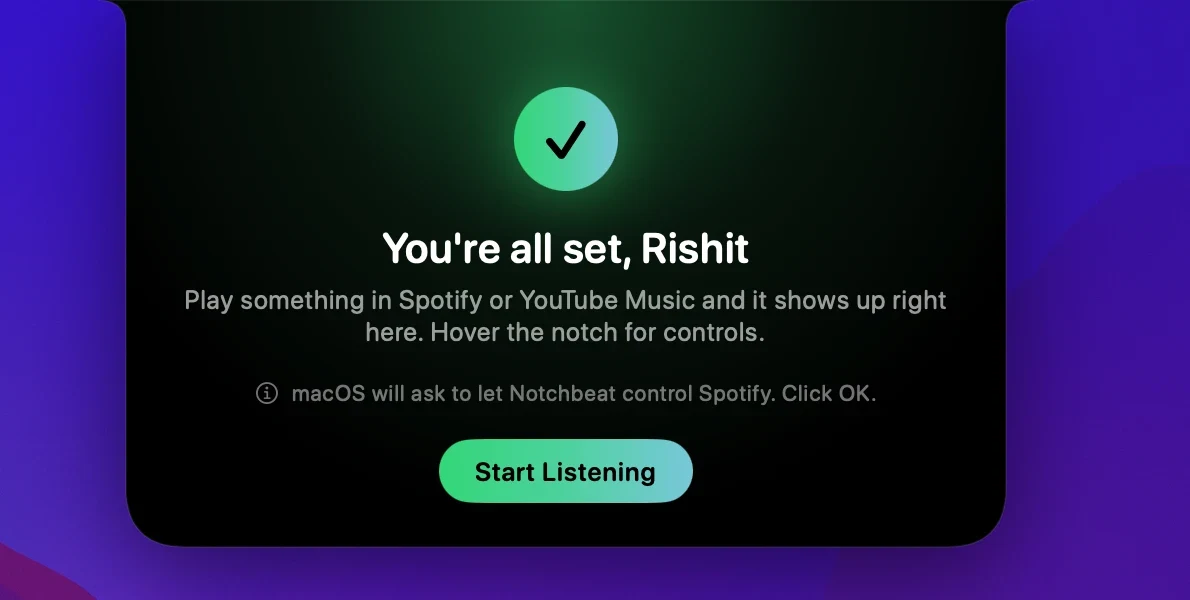
Click Start Listening
You're in. Click Start Listening. When macOS asks to let NotchBeat control Spotify, click OK.
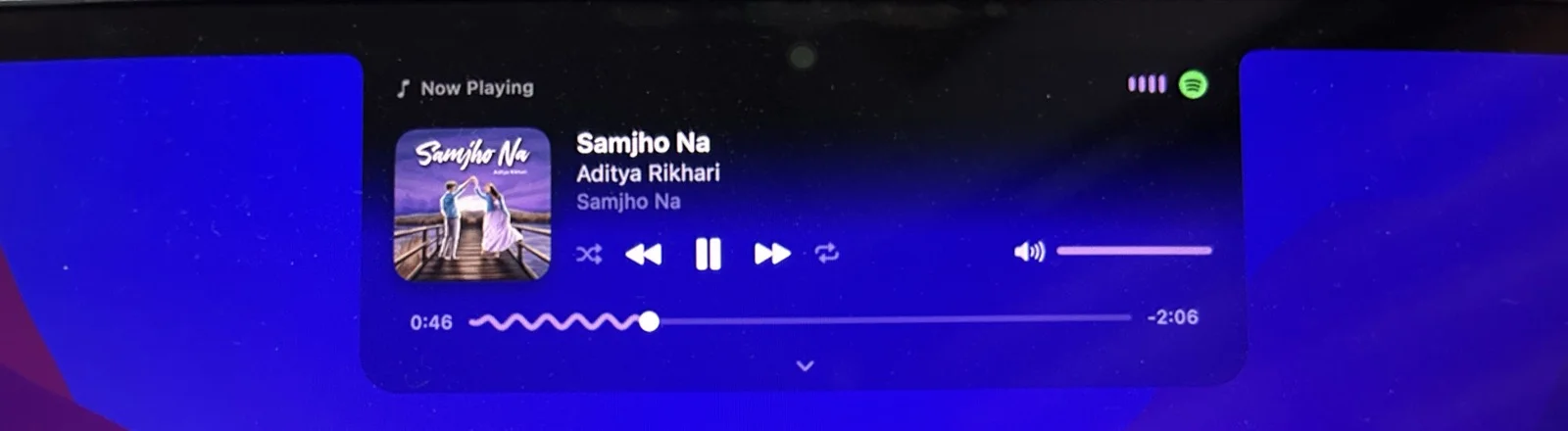
That's it. Your music lives in the notch now.
Hover the notch to play, pause, skip and scrub.
Stuck on a step? Email hello@notchbeat.app and I'll help.